
Guides
Brand Data
Save your company details and logos in Brand Data. In Elementor, use dynamic tags to fill fields with this saved information. Update a detail once to update every field using its tag.
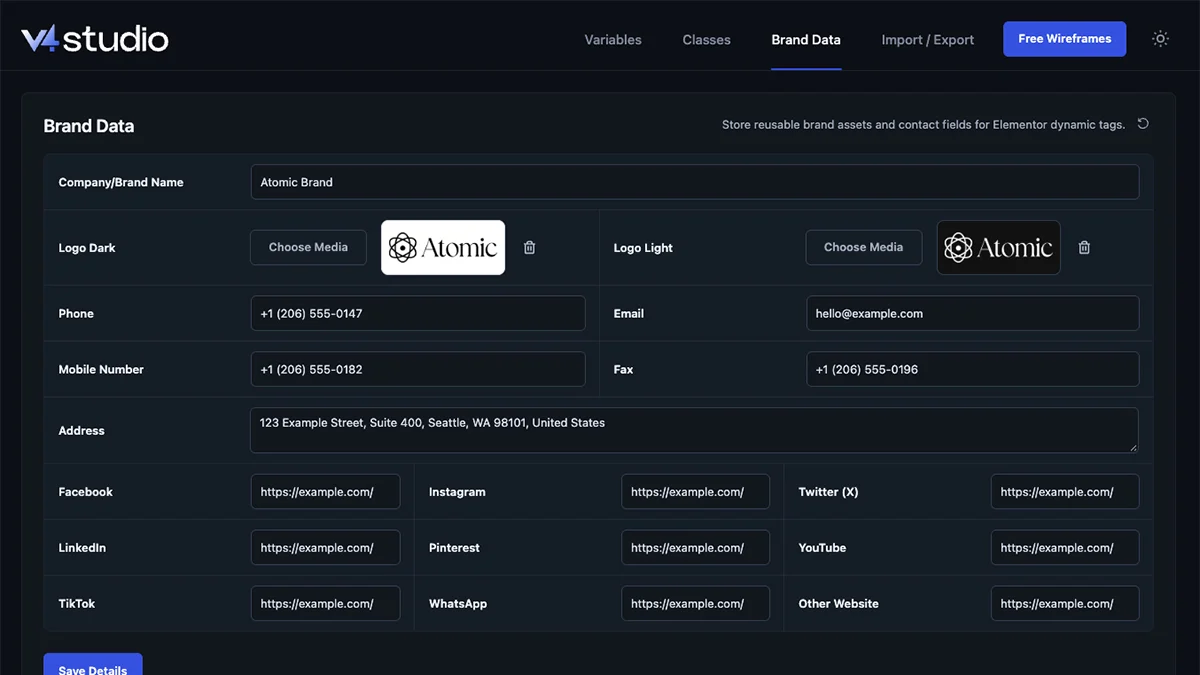
The fields
Name and logos
Your company name, a dark logo for light backgrounds, and a light logo for dark backgrounds.
Contact
Phone, mobile number, email, fax and address.
Social and links
Links for Facebook, Instagram, X, LinkedIn, Pinterest, YouTube, TikTok and WhatsApp, plus another website.
Save your details
1. Fill in the fields
Open V4 Studio › Brand Data. Enter the details you want to use. Leave any fields you do not need empty.
2. Choose your logos
Select Choose Media for each logo. Choose a dark logo for Logo Dark and a light logo for Logo Light.
3. Save
Select Save Details to save your changes.
Your saved details are available in Elementor straight away. You do not need to select an import button.
Use them in Elementor
1. Select a field
In Elementor, select a field that supports dynamic tags, such as heading text or an image.
2. Open its dynamic tags
Open the field's dynamic tags menu. Look for Brand Details. This group contains the information saved in Brand Data.
3. Choose a detail
Choose the detail you want, such as Company/Brand Name for text or Logo Light for an image.
To update a detail later, change it in Brand Data and select Save Details. Every field using its tag updates.
Rename a tag
A field's label is the name of its tag in Elementor. Hover over the label and select the edit icon, or double-click the label. Type a new name and press Enter to keep it, or Escape to cancel. Select Save Details. To restore the original name, clear the label and save.
Start over
Select the reset icon at the top of Brand Data, then confirm. This restores the sample details and default logos. Your images stay in the media library. Export your setup first to keep a copy of your saved details.
Common questions
Which logo goes where?
Use Logo Dark on light backgrounds. Use Logo Light on dark backgrounds.
Can I leave fields empty?
Yes. Clear the field and select Save Details. It stays empty when you reopen V4 Studio.
Does Brand Data move to another site with an export?
Yes, your saved text, labels and links move with the export. Custom image files do not. Upload your logos to the new site, choose them in Brand Data and select Save Details.
Next
Import & Export
Save your setup to a file, or move it to another site.