
Guides
Import & Export
Export your saved V4 Studio setup to a JSON file. You can keep the file as a copy of your settings, or import it on another site.
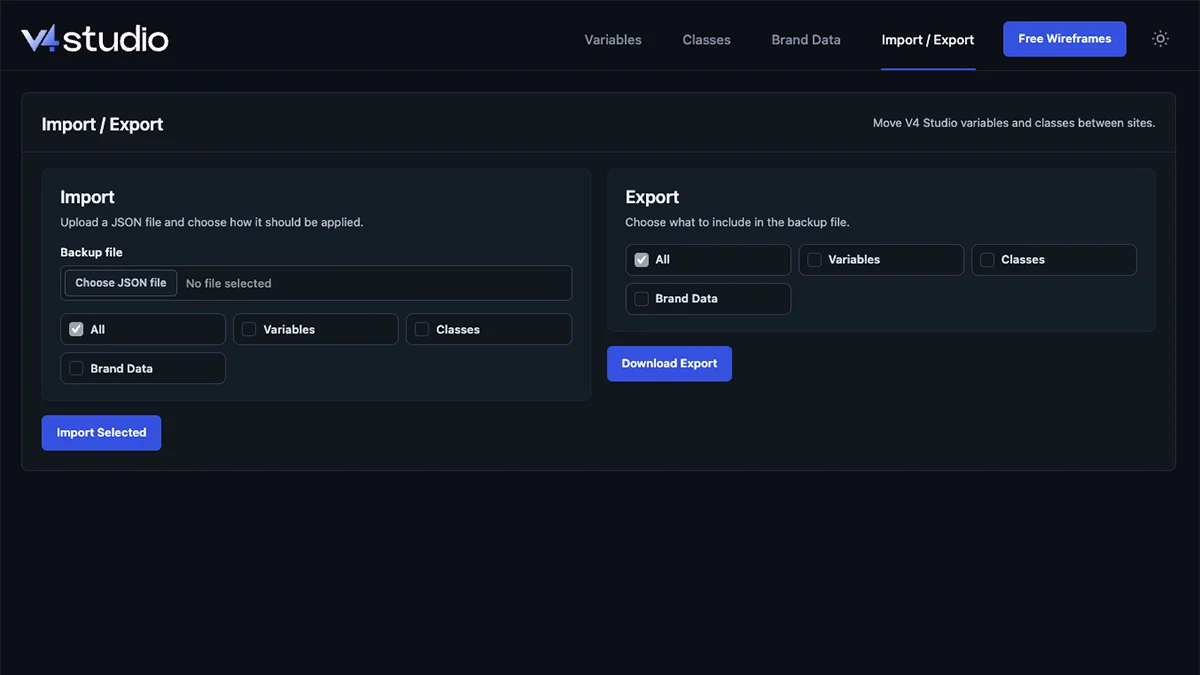
Export
1. Choose what to include
Open V4 Studio › Import / Export. Choose All, or select Variables, Classes or Brand Data.
2. Download
Select Download Export to save the JSON file to your device.
3. Keep it safe
Keep the file somewhere you can find it. Export before a reset or a large change to keep a copy of your saved settings.
Import
1. Choose the file
Open V4 Studio › Import / Export. Select Choose JSON file and choose a file exported from V4 Studio.
2. Choose what to bring in
Choose All, or select Variables, Classes or Brand Data. Select Import Selected to prepare the import and see its summary. Your current setup has not changed yet.
3. Choose how to apply it
Select Apply now to apply the selected data. Select Load into V4 Studio to review variables and classes before applying them in Elementor. Select Discard to cancel the prepared import.
Imported variables and classes are added or updated by name. Items not in the file stay unchanged. Brand Data updates the fields included in the file, including fields saved as empty.
After choosing Load into V4 Studio, open Variables or Classes and select Import Variables or Import Classes when ready. Brand Data is applied immediately with either Apply now or Load into V4 Studio. Check the summary before choosing either option.
What the file includes
Variables
Your saved variables and their values.
Classes
Your saved classes and their styles.
Brand Data
Your saved details, field labels and links, plus information about the selected logos. Custom image files are not included.
An export does not include your pages or media files. Importing updates the saved items in the file, but keeps items added afterward. Use a full WordPress backup if you need to restore the whole site.
Common questions
Does an import replace everything?
No. Imported variables and classes are added or updated by name. Items that are not in the file stay unchanged. Brand Data updates only the fields included in the file.
Why is my custom logo missing on the new site?
The export does not copy image files between sites. Upload the logo to the new site, choose it in Brand Data and select Save Details.
Can I use an export to restore my settings?
Yes. Import the file to add or update the settings it contains. Items added after the export stay in place. Pages and media files are not restored, so an export does not replace a full WordPress backup.
Next
FAQ
Answers to common questions.