
Guides
Classes
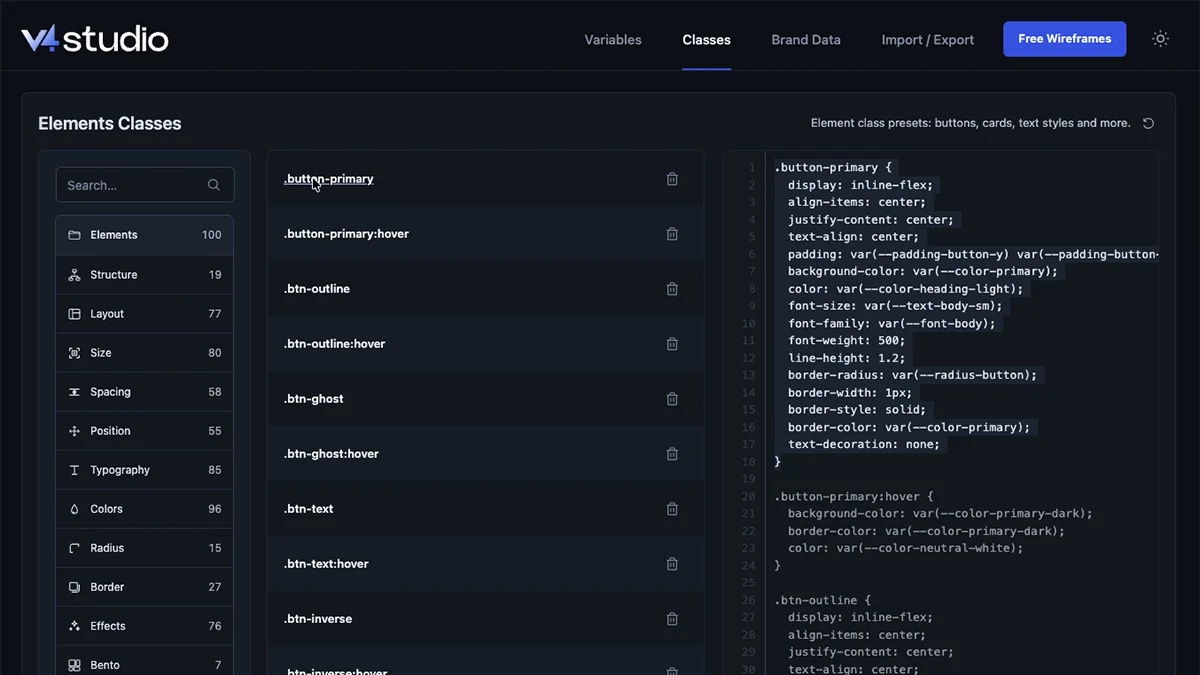
A class is a saved set of styles. Apply a class to an element in Elementor V4 to reuse the same styles across your pages.
Use a class
1. Select an element
In the Elementor V4 editor, select the element you want to style.
2. Add the class
Open the Style tab. Type the class name in the class field, such as card-base, and choose it from the list.
3. Combine classes
You can apply more than one class. For example, flex creates a flexible layout, flex-column stacks the items vertically, and gap-sm adds space between them.
The categories
Elements
Buttons, links, cards, text styles, media and accordions.
Structure
Sections, page padding and content widths.
Layout
Controls for how items are arranged, including flex, grid, columns and alignment.
Spacing
Gaps and padding.
Typography
Styles for headings, body text, text sizes, weights and line wrapping.
Colors
Text, background and border colors.
Size
Sizes, widths and heights.
Position
Element position, image fit and which elements appear in front of others.
Effects
Transparency, color blending, shadows and transitions.
Radius
Rounded corners, with classes named by size or use.
Border
Border widths, styles and sides.
Bento
A layout with tiles of different sizes, plus classes for the tiles.
Change or add a class
1. Find the class
Open V4 Studio › Classes. Choose a category on the left, or search for the class by name.
2. Edit it
CSS is the code that defines styles. Edit the class's CSS in the editor below the list, or add a new class rule there.
3. Apply the change
Select Import Classes. Check the import results. Elements using the imported class will use its updated styles.
Start a rule with a class name, such as .card. You can add one state, such as .card:hover for a style shown when the pointer is over the card. Responsive rules can use @media with min-width or max-width in pixels. V4 Studio matches these to Elementor breakpoints. Check the results for rules that could not be imported.
For rules that can be imported, some styles are saved in the class's Custom CSS instead of Elementor's style controls. Unsupported rules are skipped. The import results explain which rules were skipped and why.
More tools
Add from Elementor
Adds classes from Elementor that are missing in V4 Studio. It keeps the classes already in V4 Studio.
Reset a category
Select the reset icon at the top of the category panel, then confirm. This restores the category's default styles and applies them to Elementor. Export your setup first to keep a copy.
Explore the styles
Elements
See live examples of buttons, cards, text, media and accordions.
Common questions
Why was my class skipped?
Check the import results for the reason. V4 Studio imports simple class rules, such as .card. It skips unsupported selectors, such as IDs, element names or multiple selectors in one rule.
Can an element have more than one class?
Yes. Apply several classes to combine their styles. For example, use one class for a card and another for its background color.
Where do my classes go?
They are saved as global classes in Elementor. You can use the same class on different pages.
Next
Brand Data
Save your company details and logos, then use them in Elementor.