
Guides
Free Wireframes
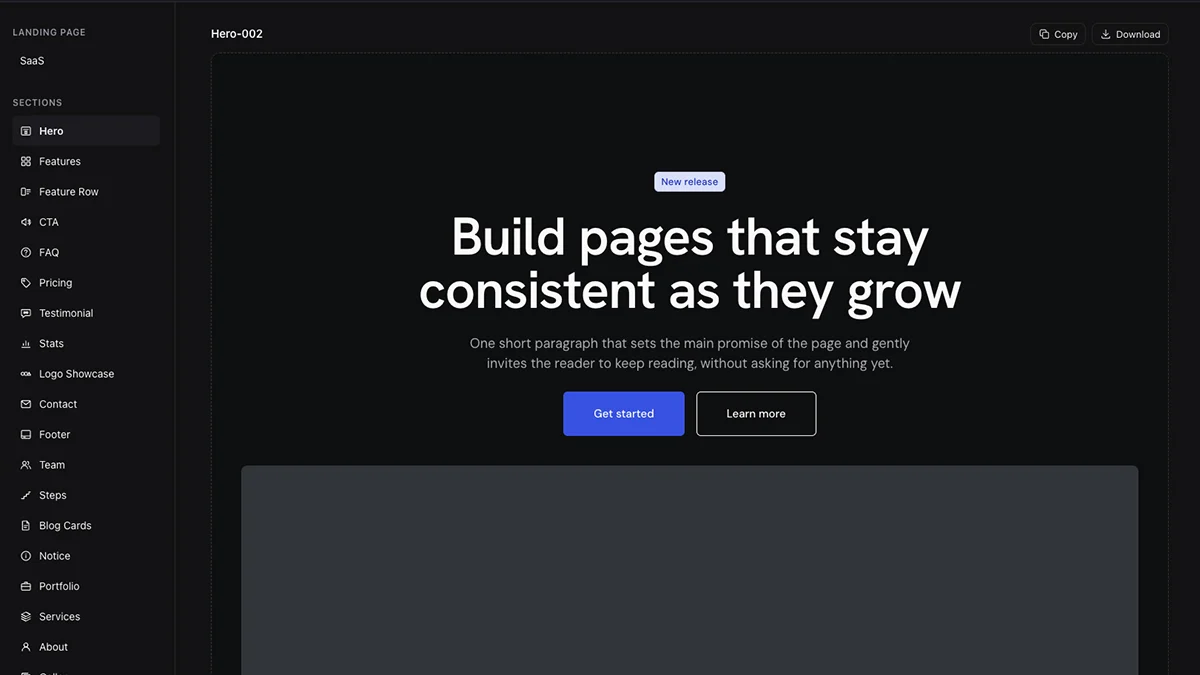
Use free wireframes as a starting point for your Elementor pages. Copy a wireframe straight into the editor, or download a JSON file and import it into your template library.
Before you start
Install and activate the free V4 Studio plugin and the latest stable version of Elementor on your destination site. Make sure Elementor’s Atomic Editor (V4) is activated before adding wireframes.
Open V4 Studio in WordPress and set up your shared variables and classes before adding wireframes. See Installation, Variables and Classes for help.
Open the free wireframe library and choose the wireframe you want. Check its requirements and activate Elementor Pro only if that wireframe uses Pro elements.
Choose the light or dark version.
Use the sun/moon icon in the top-right corner of the library to switch color modes. The previews update to show the selected version: light mode shows the light wireframes, and dark mode shows the dark wireframes.
Choose the mode you want before clicking Copy or Download. Both buttons use the version currently shown in the preview. To get both versions, copy or download one, switch modes using the icon, then copy or download the other. The icon changes the library preview; it does not change the color mode of your destination website.
Copy and paste
Use this method to add a wireframe directly to the page you are editing. Keep the library and your Elementor editor open in the same browser.
1. Copy the wireframe
Choose the light or dark version using the sun/moon icon in the library’s top-right corner. Check the preview, then click Copy above that wireframe. Wait for the button to show Copied. The copied wireframe uses the version shown when you clicked Copy.
2. Open your page
On your destination site, open a page with Edit with Elementor. Choose where you want the wireframe to appear.
3. Paste from the other site
Right-click in the editing canvas and choose Paste from other site. Follow Elementor’s on-screen paste prompt. Use this command rather than the ordinary Paste command.
4. Finish inserting
Let Elementor finish inserting the elements and importing any media. If a browser clipboard prompt appears, allow it for this action. Save the page and reload the editor before checking the final appearance. The wireframe is now editable on your page.
Download and import
Use this method to save a wireframe file or when browser clipboard access is unavailable. The Download button gives you an Elementor template JSON file.
1. Download the file
Choose the light or dark version using the sun/moon icon in the library’s top-right corner. Check the preview, then click Download above that wireframe. Save the .json file on your computer. The file contains the version shown when you clicked Download.
2. Open Saved Templates
In your destination WordPress dashboard, open Elementor’s Saved Templates screen. In the current Elementor interface, this is under Elementor → Editor → Templates → Saved Templates; older interfaces may show Templates → Saved Templates.
3. Import the JSON
Click Import Templates, choose your downloaded JSON file, then click Import Now. Wait until the template appears in the list.
4. Insert it into a page
Open your page in Elementor. Open the template library using the folder icon, go to My Templates, find the imported wireframe and click Insert. When Elementor asks which styles to use, choose Use this site’s style to keep your site’s shared V4 Studio classes. Choosing Keep the template styles can create separate local styles. If a separate prompt asks to apply template page settings, keep your existing settings unless you want to replace them. Save the page and reload the editor before checking the final appearance.
Import the wireframe into Elementor’s template library. V4 Studio’s Import & Export screen is for design-system settings, and WordPress Tools → Import is a different workflow.
After adding a wireframe
Replace the placeholder copy, images and links with your own content. Configure forms and other interactive elements before publishing.
Review the page in Elementor’s desktop, tablet and mobile views. Check spacing, text wrapping, images and buttons, then save or publish your page.
Troubleshooting
Copy shows Loading… or Copy failed.
Let the library finish loading, then click Copy again. If your browser blocks the clipboard, use the download-and-import method.
Paste from other site is missing.
Update Elementor to the latest stable version and make sure the Atomic Editor (V4) is activated. Confirm you are inside the Elementor editor and right-clicking in the editing canvas. If clipboard access is unavailable, use the download-and-import method.
The wireframe looks different or appears unstyled.
Use the latest stable version of Elementor with the Atomic Editor (V4) activated. Confirm V4 Studio is active and your shared variables and classes are available in Elementor. After inserting, save the page and reload the editor. For imported templates, choose Use this site’s style when prompted. Check that any elements required by the wireframe are enabled. Your own design variables can change its appearance.
Images or icons are missing.
Let the media import finish. If Elementor asks for permission to import media, review the prompt for this V4 Studio template. Replace unavailable media with your own files.
The JSON will not import.
Use the original JSON from Download and import it in Elementor’s template library. If the import control is unavailable, ask your site administrator to check your account’s template-upload permissions. See Troubleshooting for more help.