
Getting Started
Quick Start
Try your first changes: save your brand details, use them on a page, change a color and style a button. Start with V4 Studio installed and active.
Your first project
1. Add your brand
Open V4 Studio › Brand Data. Enter your company name and contact details, choose your logos, then select Save Details.
2. Use it on a page
In Elementor, select a text or image field that supports dynamic tags. A dynamic tag fills the field with saved information. Open the dynamic tags menu and choose a tag from Brand Details, such as your company name.
3. Change a color
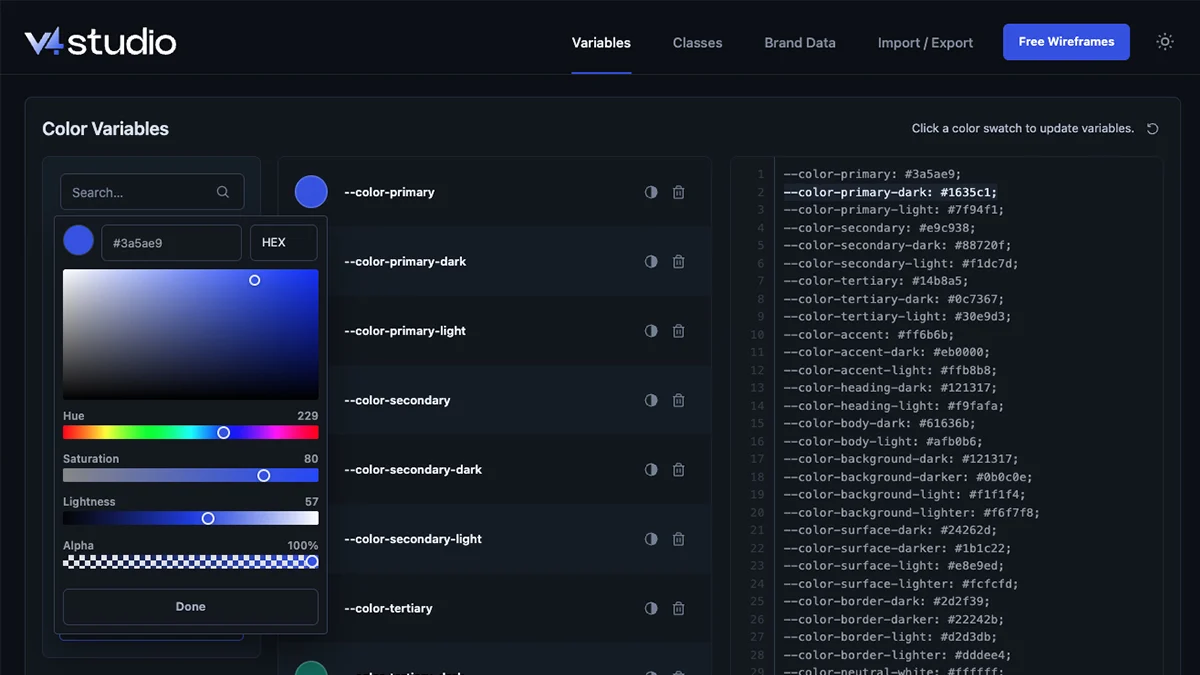
Open V4 Studio › Variables. Select a color swatch, choose a new color and select Done. Select Import Variables to apply the change in Elementor.
4. Add a class
Select a button in the Elementor V4 editor. In the Style tab, type button-primary in the class field and choose it from the list.
When you save Brand Data, every field using those tags updates. When you import a changed color, every element using that variable updates.
Start over
Use the reset button in a Variables or Classes category to restore that category's defaults. Brand Data has its own reset button. A reset applies after you confirm it. Export your setup first if you want to keep a copy of your saved changes.
Common questions
Do I need to import Brand Data?
No. Select Save Details to make your Brand Data available in Elementor.
Will V4 Studio overwrite my changes?
Your saved changes stay when you reopen V4 Studio. Importing a file can update existing values. Resetting a category brings back its defaults.
Does a reset delete my logos?
No. Resetting Brand Data changes the selected logos. Your images stay in the WordPress media library.
Next
Variables
Colors, fonts, sizes and spacing, and how to change them.