
Guides
Design Tokens
Design tokens are your site's colors, text sizes, fonts, spacing, sizes, widths and corners. Change a token, then select Add to Variables to update every element that uses it in Elementor.
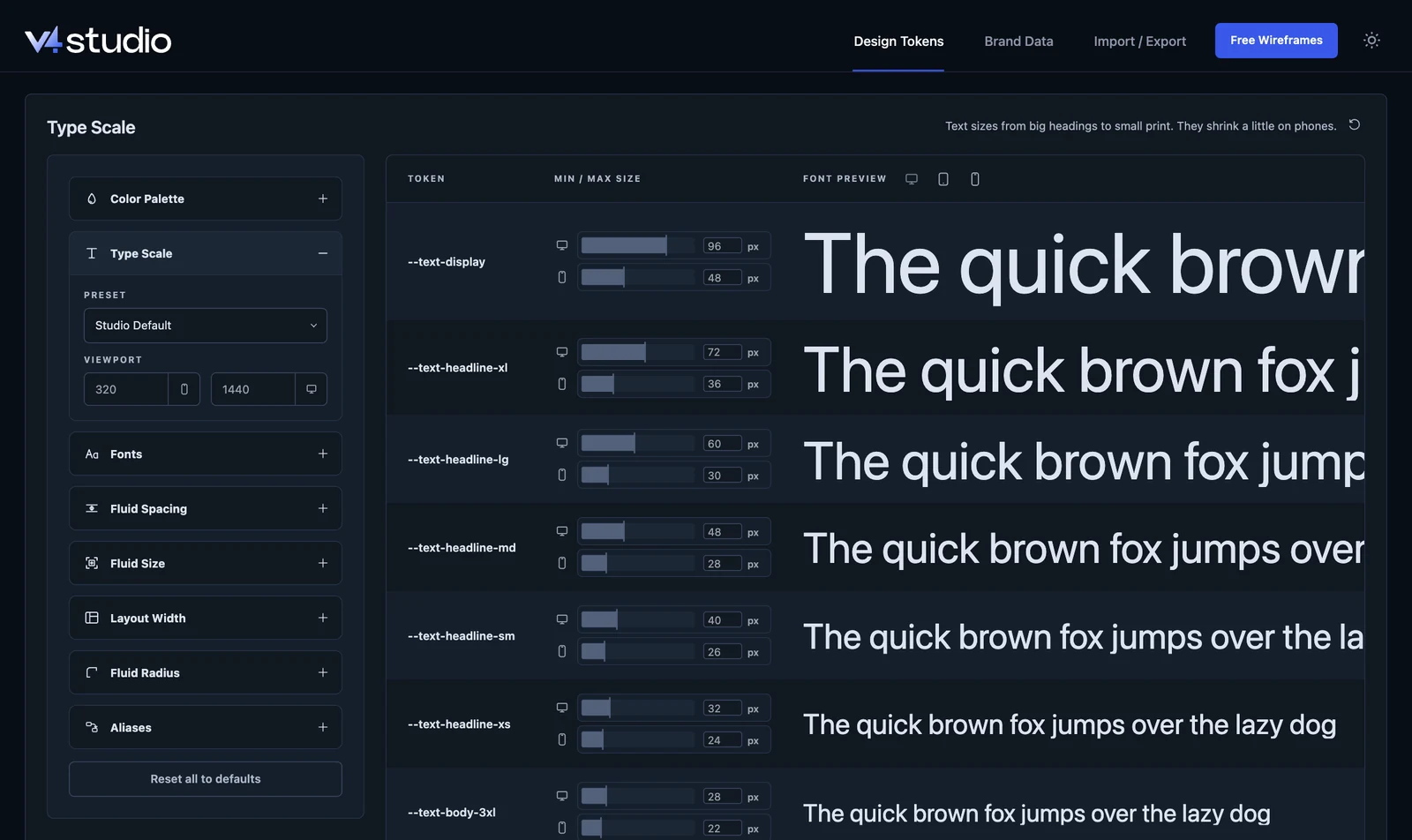
The sections
Color Palette
Brand, text, background, surface, border, neutral, transparency and status colors.
Type Scale
Text sizes from large headings to small print, on phones and on large screens.
Fonts
The fonts for headings, body text, accents and quotes, plus fonts you add.
Fluid Spacing
Space between and inside elements, from one base size and a multiplier for each row.
Fluid Size
A ladder of sizes, from tiny to extra large, for icons, gaps and dividers.
Layout Width
Widths from 320 to 1920 px, to cap how wide content and sections get.
Fluid Radius
Corners from square to fully round, from one base radius and a multiplier for each row.
Aliases
Names for a job, such as card padding. Each one uses another token or a value of its own.
Change a token
1. Open a section
Open V4 Studio › Design Tokens. Select a section in the list on the left to open it.
2. Change the value
For a color, select its swatch, choose a color and select Done. For a size, drag its slider or type a number, for phones and for large screens. For a font, choose a family and a fallback. For an alias, choose what it points to.
3. Add it to Elementor
Select Add to Variables in the section, or Add All To Variables to save every section at once. Elements that use the token update in Elementor.
Add to Variables and Add All To Variables appear once something changes. Select Undo changes to go back to the saved values. Nothing reaches Elementor until you add it.
Color tools
Color Palette has three ways to build a palette. Color Harmony from Hex builds it from one color and a harmony, such as Analogous or Triadic. Image Upload builds it from the main colors of an image. Generate Random Colors picks a ready-made palette at random; select it again for another. Your brand, text, background, surface and border colors are built from the result. Check the swatches, then select Add to Variables.
More settings
Viewport
Type Scale, Fluid Spacing, Fluid Size and Fluid Radius have a Viewport: the screen widths that sizes grow between, 320 to 1440 px by default. Below the smaller width a token uses its phone size, above the larger width its large-screen size, and in between it follows the screen width. Change it to suit your layout (200 to 3840 px, at least 100 apart). The values and preview update as you type, and the range is saved with them.
Type Scale presets
Choose a Preset to set how much bigger each text size is than the one below, such as Major Third. Studio Default keeps V4 Studio's own sizes. Base Size is your body text size; the other sizes grow or shrink from it. Use the desktop, tablet and phone icons to preview the sizes.
Fonts
Each font has a family, a fallback and a preview. The fallback is the kind of font shown while yours loads, or if it can't load. An asterisk (*) after a preview means the font isn't loaded on this site or installed on your computer, so the preview shows its fallback. The previews use fonts already on your site; V4 Studio doesn't download fonts.
Add or delete a font
Select + to add another font, then pick its family in the new row. Fonts you add can be deleted. The four shipped fonts (heading, body, accent and quote) can't be deleted and show no delete icon, because V4 Studio's classes use them.
Tip: fewer fonts
Want fewer fonts? Give several tokens the same family (for example accent = body). Each family loads only once, so it doesn't slow the site.
Missing tokens
If one of V4 Studio's tokens is missing, it shows up as a change in its section. Select Add to Variables to add it back. Your own Elementor variables stay in Elementor; V4 Studio doesn't show or change them.
Reset a section
Select the reset icon at the top of a section, then confirm. The shipped values appear as changes. Select Add to Variables to apply them, or Undo changes to keep yours.
Reset all to defaults
Select Reset all to defaults and confirm to put every token back to what V4 Studio ships with, in Elementor, straight away. Fonts you added and your own Elementor variables are not changed. Export your setup first to keep a copy.
Explore the tokens
Foundations
See the design values used on this site, with examples of colors, text sizes and spacing.
Common questions
Why didn't my change show in Elementor?
Select Add to Variables in the section, or Add All To Variables. If a value can't be saved, the section says why. Correct it and try again.
Can I add my own variables?
You can add fonts on the Design Tokens screen. Add other variables in Elementor itself.
What are aliases?
An alias is a token named for a job, such as --padding-button-x for the side padding of a button. In Aliases, choose the token it points to, such as space-sm, or choose Custom to give it a value of its own. Select Add to Variables to update the elements that use it.
Next
Classes
Reusable styles for buttons, cards, text and layout.